8. Taxes > Taxes: Overviews > Taxes: Usage Cases > Input VAT Transactions
Case 6. An advance payment resulted from return to a supplier
If the return amount or the invoice correction amount is greater than the amount that the company owes to the supplier, then the difference could be considered an advance payment to the supplier. If the company received a tax invoice for this amount from the supplier, then the company must register the appropriate input VAT by creating the following documents:
- Debit Note for the amount of return to the supplier
- Input VAT Transaction to register the resulted taxable advance amount and corresponding VAT amount
- Tax Invoice Received to register the tax invoice received from the supplier
How to process
Where: Purchasing > Purchasing Documents > Debit Notes
Create a Debit Note for the goods returned to the supplier or to adjust the Invoice Received as follows (for details, refer to Creating a Debit Note):
- On the list of existing debit notes, click Create. The Debit Note (Create) form opens.
- On the Main tab, in the Company field, select the supplier.
- Make sure the correct entity is selected in the Entity field.
- In the Transaction Type field, select Goods Return or Invoice Correction.
- Make sure the link (below the fields) contains PricesInclude VAT. Otherwise, click the link to open the Prices and Currency dialog box, select the PricesInclude VAT check box there, and close the dialog box.
- In the Basis field, select the Invoice Received for which return is being recorded.
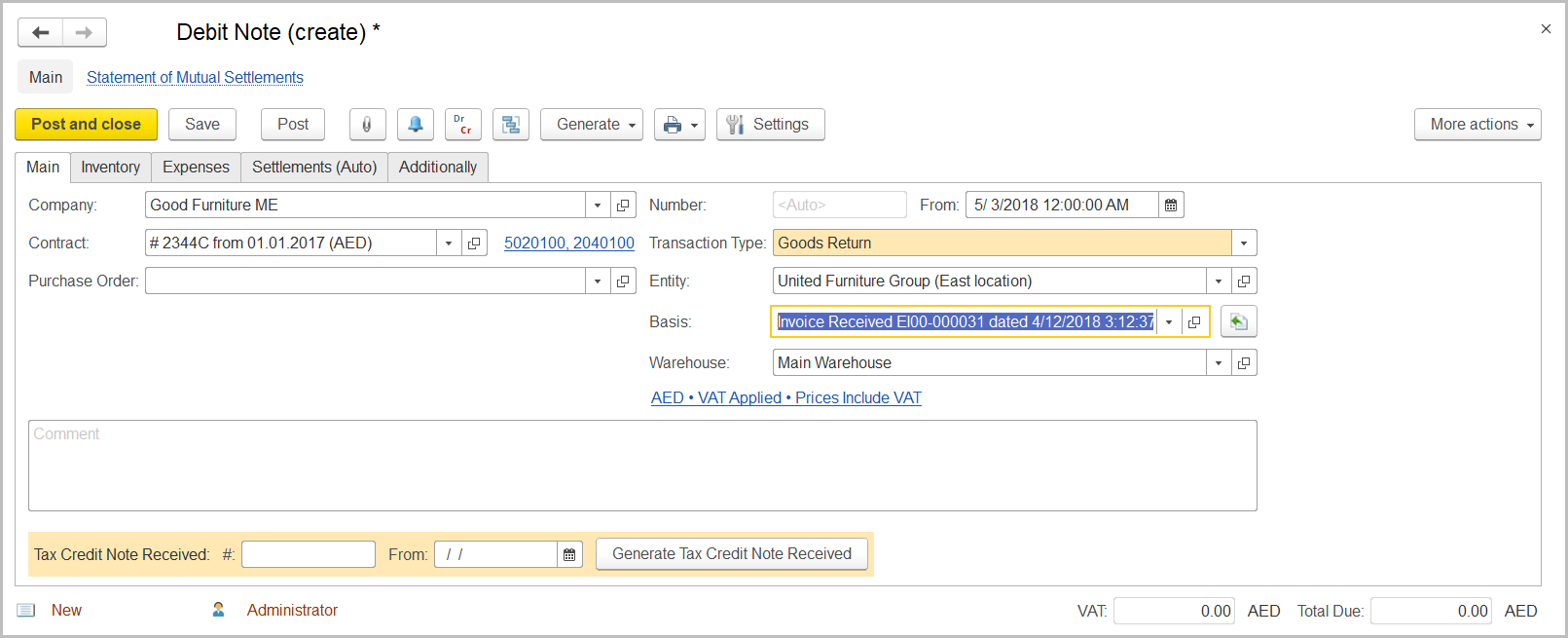 7. Click the Fill in by Basis button to the right of the Basis field. When prompted, click Yes to confirm the action.
8. On the Inventory tab, review the lines from the original invoice received. form the supplier. Specify the quantities of the items returned and delete the lines (if any) for which there are no returns.
9. In the VAT, % column, make sure the correct VAT rate is specified for each returned item.
7. Click the Fill in by Basis button to the right of the Basis field. When prompted, click Yes to confirm the action.
8. On the Inventory tab, review the lines from the original invoice received. form the supplier. Specify the quantities of the items returned and delete the lines (if any) for which there are no returns.
9. In the VAT, % column, make sure the correct VAT rate is specified for each returned item.
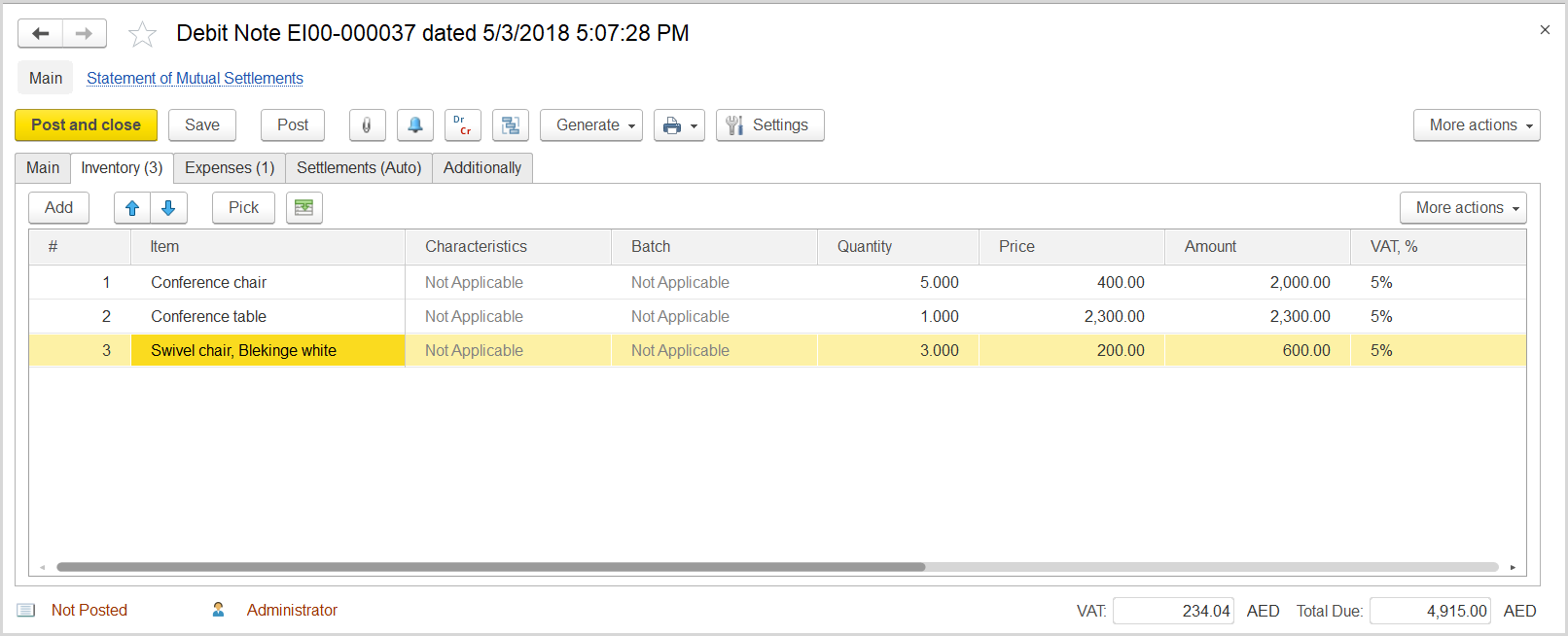 10. On the Settlements tab, if the list is empty, click the Fill by Balances button.
11. In the line with the return total, select the Advance check box.
10. On the Settlements tab, if the list is empty, click the Fill by Balances button.
11. In the line with the return total, select the Advance check box.

- Click Save and then Post.
Where: Taxes > Tax Documents > Input VAT Transactions
- Click Create to create a new Input VAT Transaction.
- In the Company box, select the supplier.
- In the TransactionType field, select Advance Payment.
- In the AdjustmentType field, select Increase.
- Make sure the link below the fields contains PricesInclude VAT. Otherwise, click the link to open the Prices and Currency dialog box, select the PricesInclude VAT check box there, and close the dialog box.
- In the Basis field, select the debit note that registered the return.
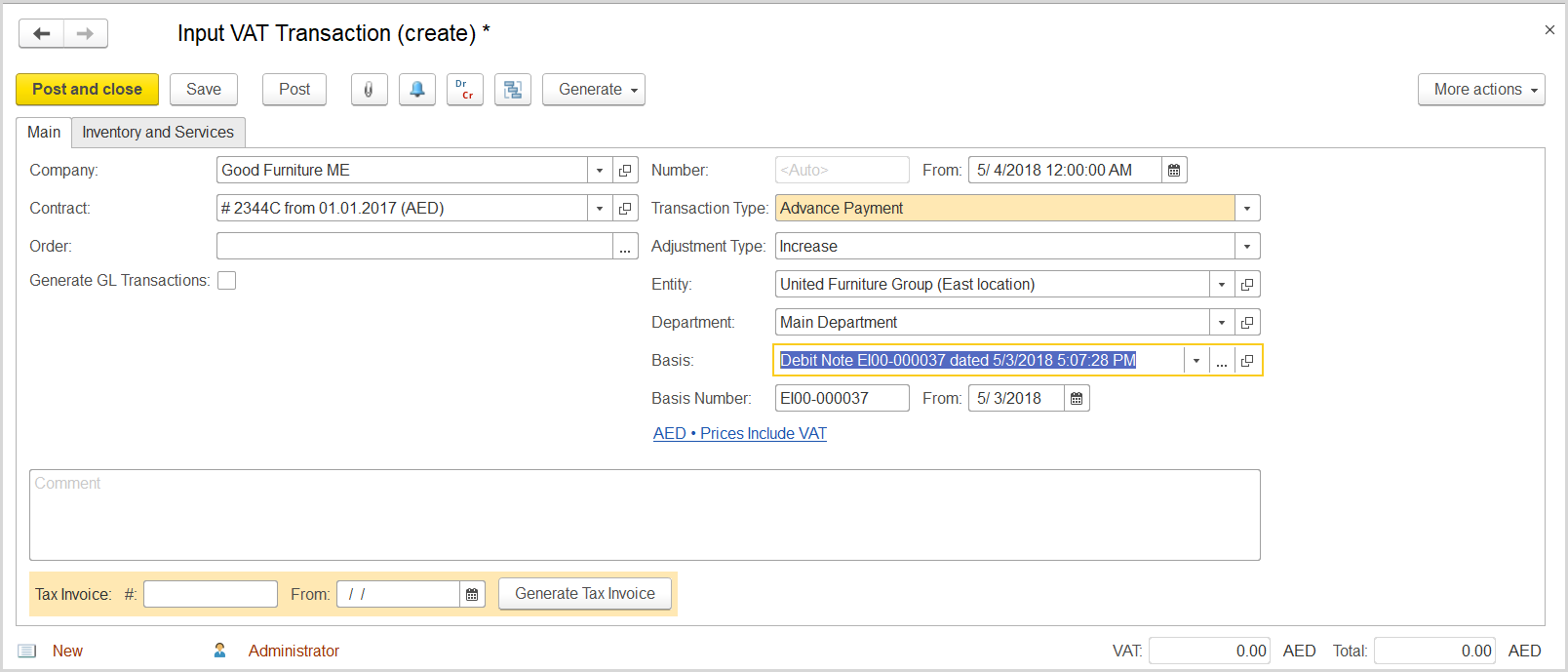 7. Click Save to assign the number to this document.
8. On the Inventory/Services tab, click Add to append a new line.
9. In the Contents column enter any comment to the transaction, for instance Return as advance.
10. In the Amount column, enter the return amount minus the amount of the company’s debt.
11. In the VAT, % column, select the applicable rate, 5%.
7. Click Save to assign the number to this document.
8. On the Inventory/Services tab, click Add to append a new line.
9. In the Contents column enter any comment to the transaction, for instance Return as advance.
10. In the Amount column, enter the return amount minus the amount of the company’s debt.
11. In the VAT, % column, select the applicable rate, 5%.

- At the bottom of the Main tab, enter the number and date of the tax invoice received from the supplier.
- Click the Generate Tax Invoice button. A link to the generated Tax Invoice Received appears.